Several times recently in #wordpress, I’ve seen people asking how they could modify the list of allowed file types used in the file uploader on the Write Post page.
Since this information isn’t readily available (apparently) and to a lesser degree because I’m tired of not being able to find my previous code (causing me to re-type it all each time), I thought I’d throw together another quick WordPress hack guide.
Introduction
When you attempt to upload a file in WordPress (2.0+ I believe) that is not in the default list of acceptable file types1, you will receive the following error:
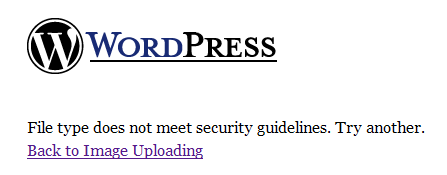
As of WordPress 2.2, there are 35 allowed file types configured in the default install. While there’s no admin-based tool for editing this list (nor any plugins that I’m aware of), it’s not at all difficult to add your own…
The Code
Upload filetypes are checked by the function wp_check_filetype in wp-includes/functions.php (around line 1,000 in my current copy of trunk). Looking at the code, we see that the default array is passed into the upload_mimes filter, allowing you to easily add and remove types at will using a quick plugin hook.
So how do we do it? Well, first you need to add a new plugin hook. In your theme’s functions.php file, add this line:
add_filter('upload_mimes', 'custom_upload_mimes');
You can, of course, replace custom_upload_mimes with your own preferred function name. Just make sure it’s something unique that ideally won’t cause any naming conflicts later on2.
Now we’ve got a hook that tells WordPress to take the array of file types passed into the upload_mimes hook and hand it to the function custom_upload_mimes. Great, but where’s our function?
No problem, I’ve got it all ready for you. Open back up your theme’s functions.php file and toss in this code:
function custom_upload_mimes ( $existing_mimes=array() ) {

	// add your ext => mime to the array
	$existing_mimes['extension'] = 'mime/type';

	// add as many as you like

	// and return the new full result
	return $existing_mimes;

}
Note that the function accepts the $existing_mimes array, adds a new file type (with the extension “extension” and of the mime type “mime/type”), and then returns the whole array.
Replace extension with your extension (no period before it, just the textual extension) and then Google to find out its mime type3.
Add as many new types as you like, simply by copying the example line and filling in your values. Also, make sure you name the function the same thing you used in the hook, assuming you don’t like my convention. Save your new functions.php file and you’re good to go!
Removing Existing Types
What if you want to remove an existing allowed type, instead of adding your own new type? Well, that’s even easier!
Replace the line $existing_mimes['extension'] = 'mime/type'; with unset( $existing_mimes['extension'] ) and you’re done. For example, to prevent users from uploading .exe files, you would use:
unset( $existing_mimes['exe'] );
Good luck, hope this helps!
- For example, Microsoft Installer files are not allowed by default, so track down an .msi file and try to upload it for a quick test. ↩
- I like to use the prefix ‘custom_’ simply because it’s easy to tell later on that this is a custom modification. ↩
- Googling for “.zip mime type”, for example, should give you any number of sites listing a whole slew of mime types. Yours should be in the same
/ format as the others. Zip is “application/zip”. ↩